
Self-Hosted S3 Compatible Storage with Garage & Proxmox Backup Server 4.1

Table of Contents
Introduction
With Proxmox Backup Server 4, a long-awaited feature has finally arrived: native support for S3-compatible object storage as a datastore. This fundamentally expands how backups can be designed, stored, and scaled in Proxmox environments.
Until now, Proxmox Backup Server required local disks or locally attached storage to host datastores. With version 4, this limitation is gone. Datastores can now be backed by any S3-compatible backend, making it possible to use self-hosted object storage solutions such as MinIO, SeaweedFS or Garage, as well as public or private S3 offerings, while still benefiting from all core PBS features like deduplication, compression, encryption, pruning, verification, and garbage collection.
One of the biggest advantages of this approach is that no local storage is required on the Proxmox Backup Server itself anymore. PBS becomes a lightweight, stateless service layer that handles backup orchestration and metadata, while the actual backup data resides in object storage. This dramatically simplifies scaling, hardware planning, and redundancy strategies. Storage capacity can grow independently from the backup server, and object storage replication or geo-distribution can be leveraged without changing PBS workflows.
Because PBS relies on standard S3 APIs, you are not locked into a specific vendor or product. Any S3-compatible backend can be used, whether it runs on-premises, across multiple sites, or in the cloud. This fits perfectly into modern, open, and flexible infrastructure designs where object storage is already a central building block.
In this How-To, we will walk through the complete setup step by step:
- Creating a new bucket in Garage
- Defining the required access keys and permissions for Proxmox Backup Server
- A brief look at nginx as a reverse proxy, providing TLS termination and clean S3 endpoints
- Adding and configuring the S3 datastore in Proxmox Backup Server, both via CLI and GUI
By the end, you will have a fully functional Proxmox Backup Server datastore backed by S3 object storage, ready for production use without any local disks attached to PBS itself.
Prerequisites
TThis guide assumes that all core components are already deployed and operational. Before configuring an S3-backed datastore in Proxmox Backup Server, the following prerequisites must be met:
- Proxmox Backup Server 4.x
A fully installed and configured Proxmox Backup Server version with S3 datastore support, accessible via CLI and web UI, and with basic system setup (networking, time synchronization, certificates) completed. - Garage Object Storage / S3 Storage
A fully initialized and production-ready Garage installation (single node or cluster) with the S3 API enabled and reachable over the network. Buckets do not need to exist yet, but capacity and redundancy must be sized for backup workloads. - nginx Reverse Proxy
An nginx instance acting as a reverse proxy in front of the Garage S3 endpoint, providing HTTPS with a valid TLS certificate, forwarding all required S3 headers, and exposing a stable public endpoint. - DNS & Network Connectivity
Proper DNS records (for examplegarage.gyptazy.com) resolving to the nginx endpoint, unrestricted network connectivity between Proxmox Backup Server, nginx, and Garage, and sufficient bandwidth and latency for backup traffic.
Configuration
S3 Storage (Garage)
In this section, we prepare Garage as an S3-compatible storage backend for Proxmox Backup Server. The following initialization steps are only required if the Garage node has not been set up before; existing and already-initialized Garage installations can skip this part entirely.
First, the current state of the Garage node is verified and the storage layout is defined and applied. This assigns the node to a datacenter, configures the available capacity, and activates the layout so Garage is ready to accept data.
Initialize Garage Node
./garage status
./garage layout assign -z dc1 -c 1G 27120d333af0da3c
./garage layout apply --version 1
Create S3 Bucket in Garage for PBS

Once Garage is initialized, an S3 bucket for Proxmox Backup Server is created along with a dedicated access key. The required permissions are then explicitly granted, allowing the key full ownership, read, and write access to the bucket so it can be safely used as a datastore.
Important: Note down the secret key, you will not see this once again!
./garage bucket create gyptazy-pbs
./garage key create gyptazy-pbs-app-key
./garage bucket allow --read --write --owner gyptazy-pbs --key gyptazy-pbs-app-key
At this point, the S3 bucket and credentials are ready and can be used to integrate Garage as an S3 datastore in Proxmox Backup Server.
Nginx Webserver
Create SSL Certificate
To securely expose the Garage S3 endpoint over HTTPS, a reverse proxy in front of the Garage service is required. For simplicity and to get up and running quickly, nginx is used here to terminate SSL/TLS and forward traffic to the local Garage instance.
The configuration shown below is intentionally minimal and uses self-signed certificates together with a non-hardened virtual host setup. It is meant for testing and initial validation only; production environments must apply proper TLS hardening, trusted certificates, and a more restrictive nginx configuration, which is out of scope for this guide.
Before configuring nginx, a self-signed TLS certificate must be created for the S3 endpoint hostname. This certificate is sufficient for local testing and can later be replaced with a trusted certificate from a public or internal CA.
openssl req -x509 -nodes -days 3650 -newkey rsa:4096 -keyout /etc/ssl/private/garage.gyptazy.com.key -out /etc/ssl/certs/garage.gyptazy.com.crt -subj "/CN=garage.gyptazy.com"Create VHost Configuration
Once the certificate is in place, the following nginx virtual host can be used to forward HTTPS traffic to the Garage service. Make sure to replace the proxy_pass endpoint to your actual Garage instance.
server {
listen 443 ssl http2;
server_name garage.gyptazy.com;

ssl_certificate     /etc/ssl/certs/garage.gyptazy.com.crt;
ssl_certificate_key /etc/ssl/private/garage.gyptazy.com.key;

location / {
    proxy_pass http://127.0.0.1:9000;
    proxy_set_header Host $host;
    proxy_set_header Content-Length $content_length;
    proxy_http_version 1.1;
    }

}
With this setup, nginx provides an HTTPS endpoint for Garage while transparently forwarding all S3 requests to the backend service. After enabling the virtual host and ensuring DNS resolution works as expected, the Garage S3 endpoint is ready to be consumed by Proxmox Backup Server.
Proxmox Backup Server
After setting up all the base parts in the background, we can finally move over to configure the Proxmox Backup Server. Keep in mind, that you need at least PBS 4.x to use this feature. You can choose to configure this by the UI or CLI.
Get Fingerprint of SSL Certificate
When using a self-signed certificate for the S3 reverse proxy, Proxmox Backup Server cannot rely on a public trust chain and therefore requires certificate pinning. This ensures that the connection to the S3 endpoint is explicitly trusted and protected against man-in-the-middle attacks by validating the server certificate via its fingerprint.
To obtain the required fingerprint, run the following command from any system that can reach the nginx reverse proxy over HTTPS. The command establishes a TLS connection to the endpoint, extracts the presented certificate, and prints its SHA-256 fingerprint, which can later be entered when configuring the S3 endpoint in Proxmox Backup Server.
openssl s_client -connect garage.gyptazy.com:443 -servername garage.gyptazy.com </dev/null \
  | openssl x509 -noout -fingerprint -sha256
Copy the displayed SHA-256 fingerprint exactly as shown. This fingerprint is then used in Proxmox Backup Server to pin the certificate for the S3 endpoint, allowing secure access even when using self-signed TLS certificates.
PBS Web-UI
With the S3 backend and reverse proxy in place, the next step is to register the S3 endpoint and create a datastore in the Proxmox Backup Server web interface. All of the following steps are performed in the Proxmox Backup Server GUI and do not require any additional packages or services.
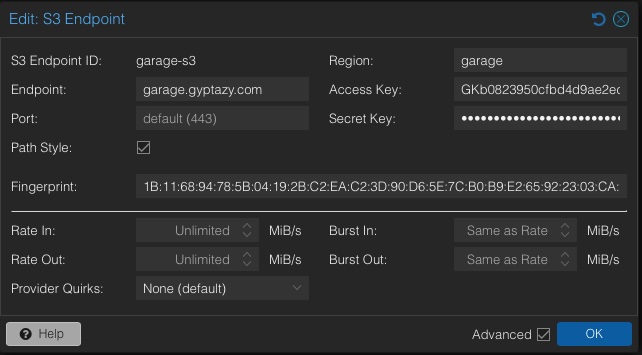
Start by logging in to the Proxmox Backup Server web interface and navigating to Configuration → S3 Endpoints. Click Add to create a new endpoint, enter a descriptive name for the endpoint, and set the server to the HTTPS hostname of the nginx reverse proxy, including port 443. Provide the S3 access key and secret key that were created in Garage, define a region value if required, enable path-style access if your Garage setup expects it, and confirm the dialog to save the endpoint.

Once the S3 endpoint has been created, switch to Datastore → Add Datastore in the navigation. Select S3 as the datastore type, choose the previously created S3 endpoint, and enter the name of the bucket that was created in Garage. Define a datastore name as it should appear in Proxmox Backup Server, adjust optional settings such as chunk size or tuning parameters if needed, and finalize the configuration.
PBS CLI
In addition to the web interface, Proxmox Backup Server allows full configuration of S3 backends directly from the command line. This is especially useful for automation, scripting, or environments where PBS is managed in a headless or reproducible manner.
To begin, the S3 endpoint is registered in Proxmox Backup Server using the credentials created earlier in Garage. The following command defines a new S3 endpoint named garage-s3, points it to the Garage reverse proxy or backend address, and configures the required access and region information.
proxmox-backup-manager s3 endpoint create garage.gyptazy.com-pbs \
  --endpoint garage.gyptazy.com \
  --access-key GKb8bbf2388551cf96c9f79965 \
  --secret-key f76054e70426fa5d009a18873d32d2e0bcdb967ab18bee10ac505b53d1e883de \
  --region garage
Once the endpoint has been created successfully, it can be reused by one or more datastores. The next step is to create the actual S3-backed datastore and bind it to the previously defined endpoint and bucket in Garage.
proxmox-backup-manager datastore create gyptazy-pbs \
  --type s3 \
  --s3-endpoint garage.gyptazy.com-pbs \
  --s3-bucket gyptazy-pbs
After executing these commands, Proxmox Backup Server will validate access to the S3 backend and initialize the datastore. When the datastore appears as available, it is fully ready to store backups and can immediately be assigned to Proxmox VE nodes.
Summary
With the introduction of S3-backed datastores in Proxmox Backup Server 4, backup architectures can now be designed in a far more flexible and future-proof way. By combining Proxmox Backup Server with a self-hosted, S3-compatible object storage such as Garage, backups are fully decoupled from local disks and can scale independently of the backup server itself.
This guide demonstrated the complete workflow, starting with preparing Garage as an object storage backend, creating buckets and access credentials, exposing the S3 API securely via an nginx reverse proxy, and finally integrating the storage into Proxmox Backup Server using both the web interface and the CLI. The result is a fully functional PBS datastore that leverages object storage while retaining all native PBS features such as deduplication, compression, encryption, verification, and pruning.
One of the key takeaways is how easy it has become to self-host S3-compatible storage. Solutions like Garage, MinIO, or SeaweedFS can be deployed on-premises or across multiple sites and used directly as a storage backend or datastore in Proxmox Backup Server since version 4. This highlights the strength and maturity of the open-source ecosystem, where interoperable components work together through well-defined standards such as S3.
Beyond the technical benefits, this approach also has strong strategic advantages. Open-source solutions remove vendor lock-in, avoid opaque or unpredictable pricing models, and make long-term capacity and cost planning significantly easier, especially for enterprises. Infrastructure decisions are no longer tied to a single vendor or hardware platform, allowing organizations to adapt, scale, and evolve their backup strategy over time without being forced into disruptive migrations. And if you’re already running the Proxmox Backup Server, my post about the PBS-Exporter for Grafana & Prometheus metrics might also be interesting for you!